Follow these steps to reset a Google account password. You will need the relevant permissions already assigned to your account before you are able to reset passwords.
- In your Google Admin console (at admin.google.com)...
- Go to Menu


 Directory > Users.
 - In the Users list, find the user. If you need help, read Find a user account.
- Point to the user
 click Reset passwordat the right.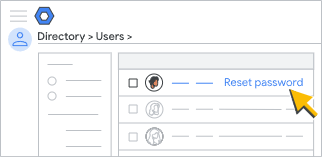
You can also find this option on the left of the user's account page.
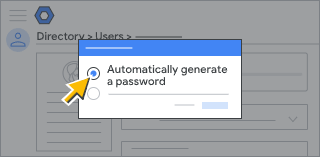
- In the Reset password box, select an option:
- Automatically generate a password.
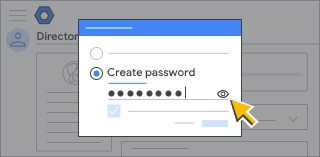
- To enter your own password, select Create password. To view the password you created, click Preview
 .
.
- Automatically generate a password.
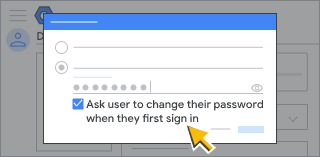
- (Optional) To have the user change the password the next time they sign in, select Create Password and check the Ask for a password change at the next sign-in box.
- Click Reset.
- To finish, click Done.
Was this article helpful?
That’s Great!
Thank you for your feedback
Sorry! We couldn't be helpful
Thank you for your feedback
Feedback sent
We appreciate your effort and will try to fix the article